How to Play Gravepowder on Mobile & Chromebook Without Lag (2026)
Step-by-step performance setup for playing Gravepowder on phones, tablets, and Chromebooks: landscape touch controls, WebGL hardware acceleration, fullscreen tips, and a live browser checker.
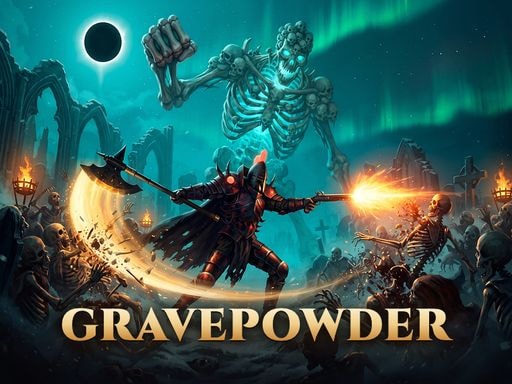
Playing a 3D Dark-Fantasy Action Game Smoothly on Phones & Chromebooks
Because Gravepowder delivers genuine third-person 3D combat—axe steel, flintlock shots, gold-ring parries, Solo Campaign Vaults, Salt Beacon co-op, and Gallows Circle 4v4—inside an HTML5/WebGL canvas, hardware setup matters far more than it does in 2D browser puzzle games.
Before troubleshooting blindly, click Run Browser Check Now inside the Interactive Browser WebGL & Save Readiness Checker above. In one second it verifies locally (with zero data uploaded) whether your current device has WebGL 3D enabled, local save storage active, fullscreen permission available, and landscape viewport orientation set.
How to Play Gravepowder on Mobile Phones (iOS & Android)
Gravepowder officially supports touchscreen play on smartphones and tablets, built specifically around landscape (sideways) ergonomics:
- Rotate your phone sideways first: Holding your phone vertically cramps the virtual thumbstick and hides incoming attack cues. Turn off portrait orientation lock and rotate horizontally before clicking Play Gravepowder Now on Gravepowder.com.
- Tap Fullscreen immediately: On Android Chrome and modern mobile browsers, tapping Fullscreen removes the top address bar and bottom navigation strip—giving you maximum visibility for reading gold parry rings and preventing accidental browser gestures while dodging.
- Disable Low Power / Battery Saver mode: Both iOS Low Power Mode and Android Battery Saver throttle GPU frame rates in WebGL games, making gold-ring parry timing feel sluggish.
- Close background apps: Keeping memory clear prevents mobile Safari or Chrome from reloading the browser tab mid-campaign.
Optimizing Gravepowder on School & Work Chromebooks
Chromebooks are one of the most popular devices for playing zero-download browser games, yet integrated graphics and browser extensions can easily cut frame rates in half unless configured cleanly:
| Chromebook / Browser Setting | Recommended State | Impact on Gravepowder |
|---|---|---|
Chrome Hardware Acceleration (chrome://settings/system) |
ON | Moves 3D WebGL rendering from CPU to GPU—often the single biggest FPS boost |
| Heavy Ad/Privacy Extensions on Game Frame | Allow game iframe | Prevents scripts from blocking HTML5 assets or freezing initial load |
| Open Browser Tabs | Keep ≤ 3 active tabs | Frees RAM on 4GB/8GB Chromebooks so 3D parish textures load smoothly |
Display Zoom (Ctrl + 0) |
100% default zoom | Keeps mouse-look sensitivity and UI hitboxes crisp |
| Server Mirror Selection | Primary .games or Switch Server .co |
Bypasses single-host school/office filters cleanly via the Switch Server button |
Desktop Browser Comparison for Smooth 3D WebGL Play
While Gravepowder runs across every modern desktop browser, quick hygiene keeps frame pacing steady during intense boss fights like the Ossuary Saint:
- Chrome / Edge / Brave (Chromium): Best overall WebGL2 compatibility and fullscreen pointer-lock reliability. Verify "Use graphics acceleration when available" is enabled in Settings → System.
- Firefox: Ensure WebGL is not disabled in privacy hardening profiles (
resistFingerprintingcan throttle canvas timing and make parry cues choppy). - Safari (macOS & iOS): Works cleanly out of the box; tap inside the frame once loaded to confirm audio and keyboard focus.
Quick Checklist Before Challenging a Vault on Mobile or Laptop
- Run the Browser Readiness Checker at the top of this page and aim for
4/4 Checks Passed. - Switch to Fullscreen on Gravepowder.com so browser chrome never steals clicks or touch swipes.
- If your network blocks the default host, click Switch Server right beneath the player to load the backup mirror.
- Never use Incognito or Guest mode if you want your Solo Campaign progress saved between study breaks or commutes.
Need help recovering a stuck load or understanding how browser saves work? Read our Gravepowder Browser Saves & Troubleshooting Guide next.
Frequently Asked Questions
Can I play Gravepowder smoothly on my phone?
Yes. Rotate your smartphone or tablet sideways into landscape orientation for Gravepowder's on-screen touch controls, and tap Fullscreen right beneath the player on gravepowder.com.
How do I fix lag when playing Gravepowder on a Chromebook?
Enable Graphics/Hardware Acceleration in Chrome settings, close extra background tabs, switch to Fullscreen, and use the Switch Server button below the player if your network filters the primary host.
How can I test if my browser supports Gravepowder 3D graphics?
Run the free local Browser WebGL & Save Readiness Checker embedded at the top of this article—it checks WebGL, localStorage, fullscreen support, and screen orientation locally in one click.